

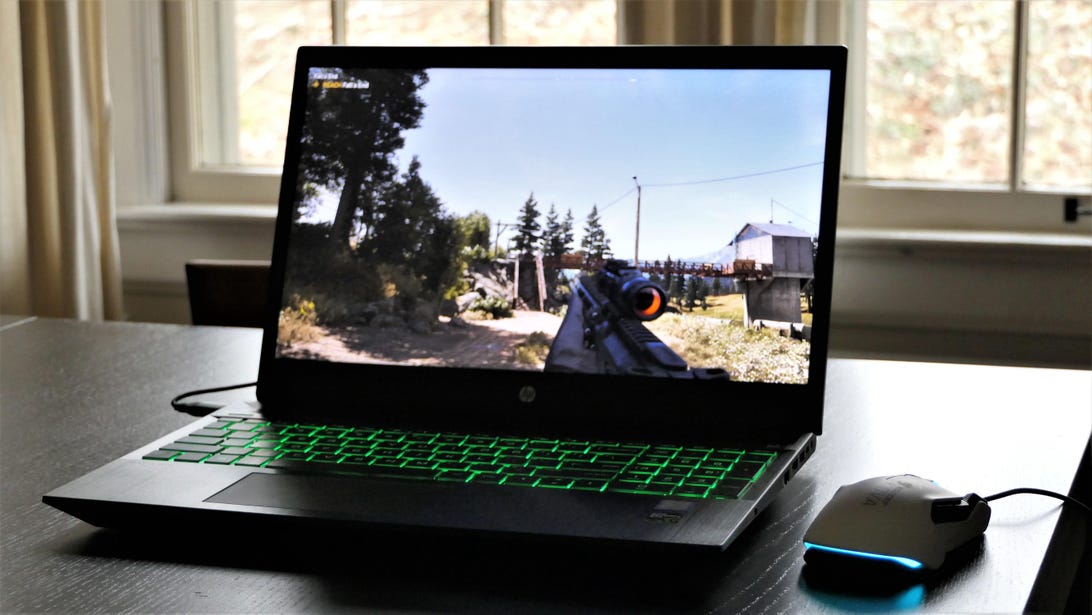
Steam’s library sharing feature is convenient, but has some drawbacks.
Taylor Martin/CNET
With its no-strings-attached approach and a frequent sales, Steam — Valve’s digital gaming distribution service — makes it easy for gamers to build up sizable gaming libraries. Unlike game subscription services (Xbox Game Pass, Apple Arcade, Google Play Pass), you can purchase individual games on Steam without a monthly commitment.
Another perk? Steam Family Sharing lets you share your game library with others. Even though this feature is aimed at helping parents distribute and monitor what their kids play, it also lets you lend games to your friends. Here’s a step-by-step guide on how to share your Steam library.
Protect your account by enabling Steam Guard
Safeguarding your game library should be your top priority. This way, even if you share your account, everything will still be protected and within your control. To do that, you need to enable Steam Guard. Steam Guard — which is free to turn on — provides an additional level of security that protects your account from unauthorized access.

Brett Pearce/CNET
Here’s how to enable Steam Guard on your account with the desktop app or in browser:
1. Go to Steam’s homepage and make sure you’re logged in.
2. In the upper right corner, click your username.
3. In the drop-down menu, click Account Details.
4. Scroll down to Account Security and click Manage Steam Guard.

Enabling Steam Guard can help protect your account, even if you don’t share it.
Screenshot by Shelby Brown/CNET
From there, you can choose between having Steam Guard codes sent to your phone or email, or you can turn Steam Guard off entirely. You’ll also see the option to deauthorize all other computers or devices other than the one you’re currently using that might have saved your login information. Steam recommends sending Guard codes to your phone as a form of two-factor authentication.
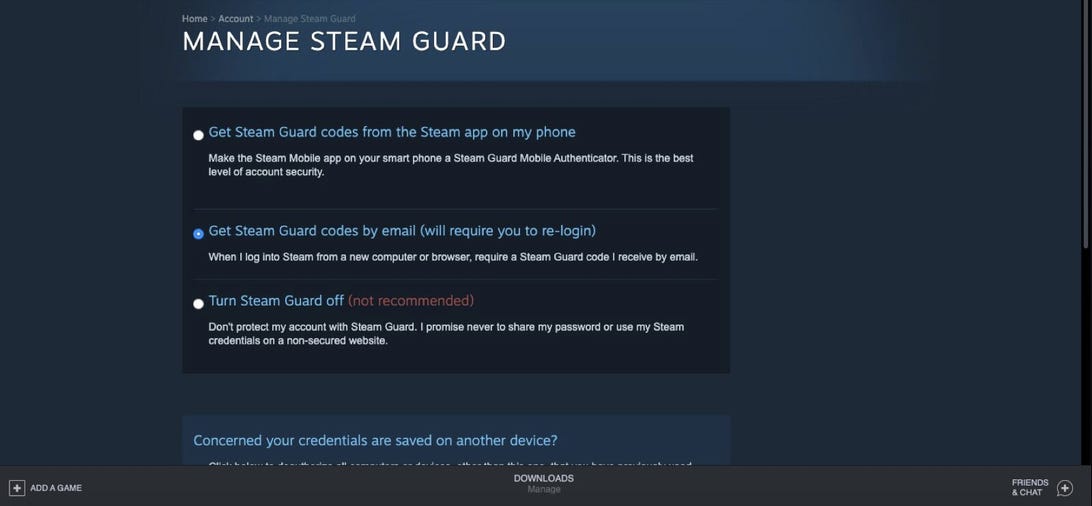
Sending codes to your phone provides an additional level of security on your account.
Screenshot by Shelby Brown/CNET
Share your Steam game library
Log into your family member or friend’s computer with your Steam account to get started. You can do this from your app, here’s how:
1. In the top left corner, click Steam.
2. Select Settings (on Windows) or Preferences (on Mac) from the drop-down menu.
3. Select Family in the side menu
4. Click the box that says Authorize Library Sharing on this computer.

You can authorize library sharing in the Steam app.
Screenshot by Shelby Brown/CNET
This gives you the option to authorize any accounts that have also logged into the same computer. If no one else has, you’ll get a message saying “No other local accounts found.” After this is complete, log out of your account and your friend or family member can log back into theirs. They should now have the ability to download and install select games from your library.
You can select up to five users who can access and use your library across 10 devices that you’ve authorized. While you can’t set up Family Sharing in a browser, you can check which devices and accounts have access to your Steam Library. You can also revoke access.
Here’s how to check in the Steam app:
1. In the upper right corner, click your username.
2. In the drop-down menu, click Account Details.
3. Scroll down to Family Settings and click Manage Family Library Sharing.
4. If any accounts or devices have access that you no longer wish to, you can click Revoke under Sharing Status.
Checking in a browser is essentially the same, once you log into the Steam site:
1. Go to Steam’s homepage and make sure you’re logged in.
2. In the upper right corner, click your username.
3. In the drop-down menu, click Account Details.
4. Scroll down to Family Settings and click Manage Family Library Sharing.
5. If any accounts or devices have access that you no longer wish to, you can click Revoke under Sharing Status.
Pros of sharing your gaming library with Steam Family Sharing
- Sharing your games with others.
- Being able to try out games when your family or friends share their account with you.
- Parents can have a bit more control over games their younger children may play.
- Easy to view and revoke access to who has access to your library.
- Gives the user you’re sharing with a chance to try a game without investing money right away.
Cons of sharing your gaming library with Steam Family Sharing
- Steam’s sharing features aren’t perfect.
- Only five accounts can access your gaming library from up to 10 different computers.
- You need an internet connection to access the shared libraries.
- Libraries can only be shared in their entirety.
- Some games don’t qualify for sharing because they require a subscription.
- Shared games can only be accessed by one person at a time, so you won’t be able to easily play games together.
- The account holder has priority access to their games. If you start playing a game while another person is already playing, they’ll have the option to buy the game or end the session.

