
Skip to content
-
Subscribe to our newsletter & never miss our best posts. Subscribe Now!
  • https://www.facebook.com/
  • https://twitter.com/
  • https://t.me/
  • https://www.instagram.com/
  • https://youtube.com/
Excellentpix Excellentpix

Intelligence Redefined

Excellentpix Excellentpix

Intelligence Redefined

  • Green Energy
  • Tech News
  • Gadget
  • Smartphone
  • Laptop
  • PC
  • About Us
    • Advertise Here
    • Contact Us
    • Privacy Policy
    • Sitemap
  • Green Energy
  • Tech News
  • Gadget
  • Smartphone
  • Laptop
  • PC
  • About Us
    • Advertise Here
    • Contact Us
    • Privacy Policy
    • Sitemap
Subscribe
Close

Search

How to install Windows Sandbox in Windows 11?
Laptop

How to install Windows Sandbox in Windows 11?

By Maria H. Gray
December 5, 2022 2 Min Read
0

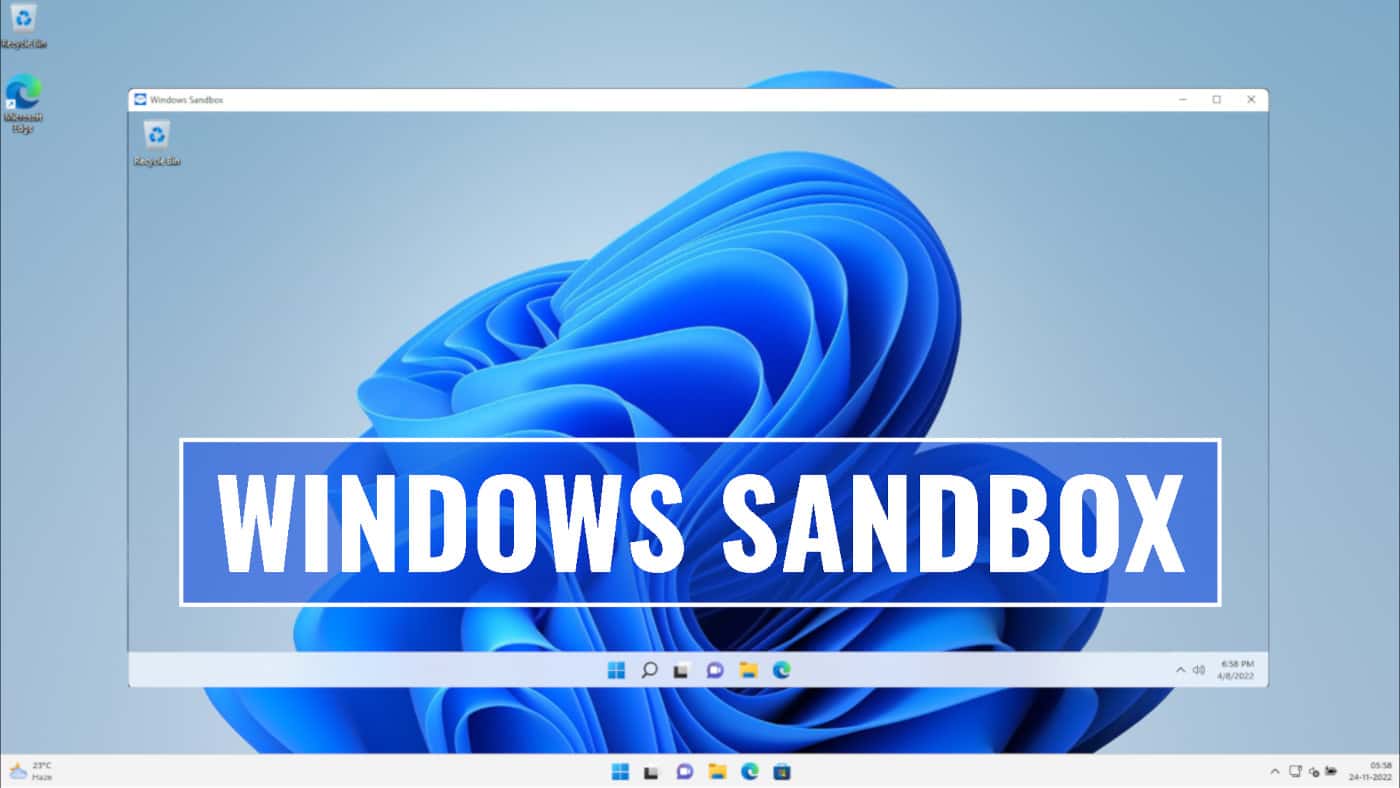
Windows Sandbox is a virtual desktop environment that allows you to run any unknown applications in an isolated space, ensuring no harm to your host system. When you are done with the work, close the sandbox to automatically destroy that virtual space.


Windows Sandbox does not come by default with Windows installation. You need to separately install it as an optional Windows feature. Let’s learn how to install Windows Sandbox in Windows 11 operating system.
 

How to install Windows Sandbox in Windows 11?


Windows Sandbox is a virtual safe space to run untrusted applications in Windows 10 and Windows 11 operating systems. If your Windows 11 PC/Laptop supports virtualization and that has been already enabled in the system BIOS, follow the steps mentioned below to install Windows Sandbox:

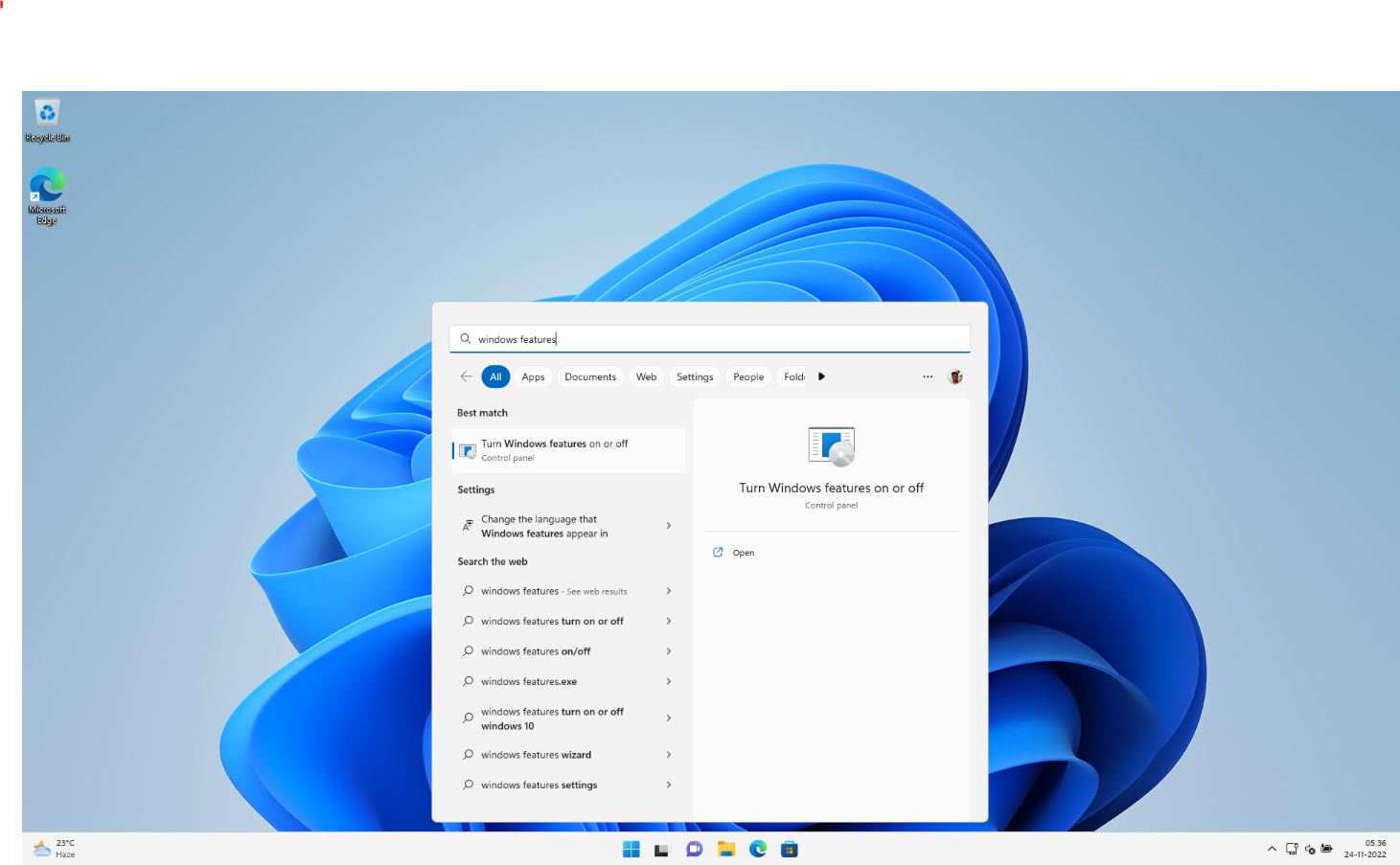
  1. Click on “Start” (Win), and search for “Windows Features“.
  2. Click on “Turn Windows features on or off“, as shown in the following screenshot:
How to install Windows Sandbox in Windows 11?
  1. Now, from the “Windows features” dialog, scroll down to the bottom and select “Windows Sandbox” from the list.
  2. Click on the “OK” button, and restart the system once asked.


Once you have successfully installed the Windows Sandbox, you can find it under the Windows 11 Start screen. In the Windows start, type sandbox, and then click to launch it. This will open the guest operating system to a clean, fresh installation.


Tags:

Windows
Author

Maria H. Gray

Follow Me
Other Articles
Previous

Ontario appeal court limits privacy claim in data breach lawsuits

The Importance of WIIFM in Change Management –
Next

The Importance of WIIFM in Change Management –

No Comment! Be the first one.

Leave a Reply Cancel reply

You must be logged in to post a comment.

Categories

  • Car
  • Entertainment
  • Gadget
  • Games
  • general
  • Green Energy
  • internet marketing
  • IT Solutions
  • Laptop
  • Lifestyle
  • PC
  • Property
  • Real estate
  • SEO
  • Smartphone
  • Software Company
  • Start Up
  • Tech News
  • Technology

Archives

Recent Posts

  • How AI Customer Review Software Helps Businesses Improve Online Reputation
  • HIPAA EDI Transactions Explained: 834, 835, 837, 270/271, 276/277, 278 and 820
  • AI-Powered Phishing Is Getting Better: How Staff Training Needs to Change in 2026
  • 10 Best Enterprise GEO / AEO / SEO Agencies to Build Offsite Brand Mentions in 2026
  • How a Review Management System Helps Businesses Build a Stronger Online Reputation

BL

excellentpix.com

WhatsApp us